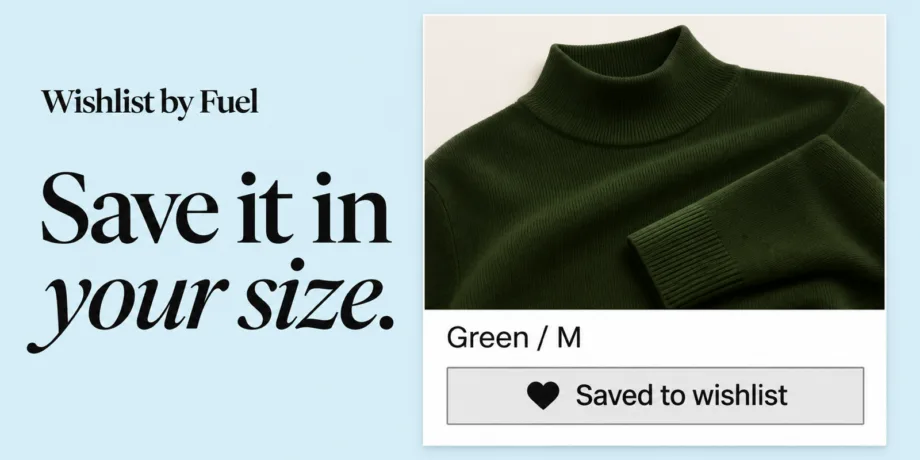
To add a wishlist to a Shopify store, you install a wishlist app. Shopify treats a wishlist as an app’s job: the Theme Store’s requirements name wishlists as app-like functionality that themes must not build in. Wishlist by Fuel is our answer. It’s a wishlist app from Fuel Themes, the team behind Ascension, Reformation, Distinctive, North, Pinnacle, Vision and Habitat, and it launched on the Shopify App Store on November 16, 2026.
It adds a wishlist icon to product cards, a button to product pages, a header icon with a count and a wishlist page inside your theme. Guests can save without an account. On our themes, there’s nothing to place: switch on the app embed and everything appears where it belongs. It also works on other Online Store 2.0 themes, has a free plan, and adds back-in-stock and price-drop emails from $9.99 a month.
Key takeaways
- A Shopify wishlist is an app’s job. The Theme Store requirements list wishlists among the functions themes must leave to apps.
- On Fuel themes, setup is one switch. Turn on the “Wishlist” app embed. The card icons, the product page button and the header icon are placed for you, with no app blocks and no code.
- Guests save without signing up. Their list stays in the browser and joins their account when they sign in.
- The product page saves the exact variant, the color and size the shopper chose, not just the product.
- The Free plan has no limit on saves, shoppers or traffic. Plus ($9.99 a month) adds back-in-stock and price-drop emails. Pro ($24.99 a month) adds low-stock and reminder emails with single-use discount codes.
Why a Shopify wishlist has to be an app
If you’ve wondered why our themes don’t simply include a wishlist, the answer is in Shopify’s rules for the Theme Store: themes must not incorporate app-like functionality that needs API access to work fully, and Shopify gives wishlists as its first example. A theme can’t store a shopper’s saved items across devices, merge a guest list into an account or email someone when a product is back in stock. All of that needs a server, which is what an app provides.
That’s also why “add a wishlist to Shopify” tutorials that paste code into a theme only go so far. A code-only wishlist can save to the shopper’s browser, but it can’t follow them to another device. It can’t tell you which products are saved most, or bring shoppers back when a price drops.
So we built the app our themes can’t contain. Because we also make the themes, the app knows exactly where each of our themes puts its product cards, buy buttons and cart icon.
What your shoppers get
Everything in this section is on the Free plan.
A wishlist icon on every product card
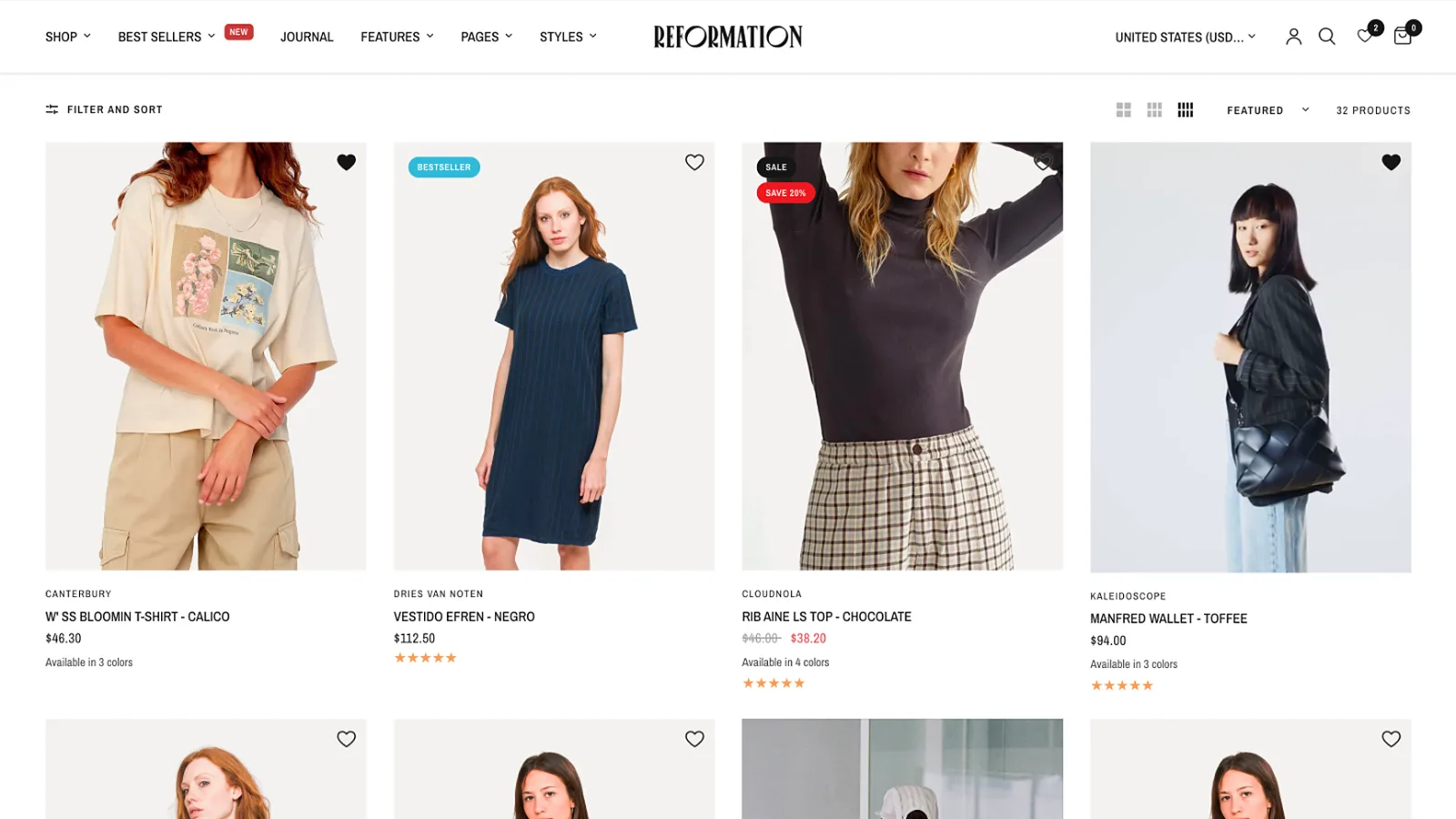
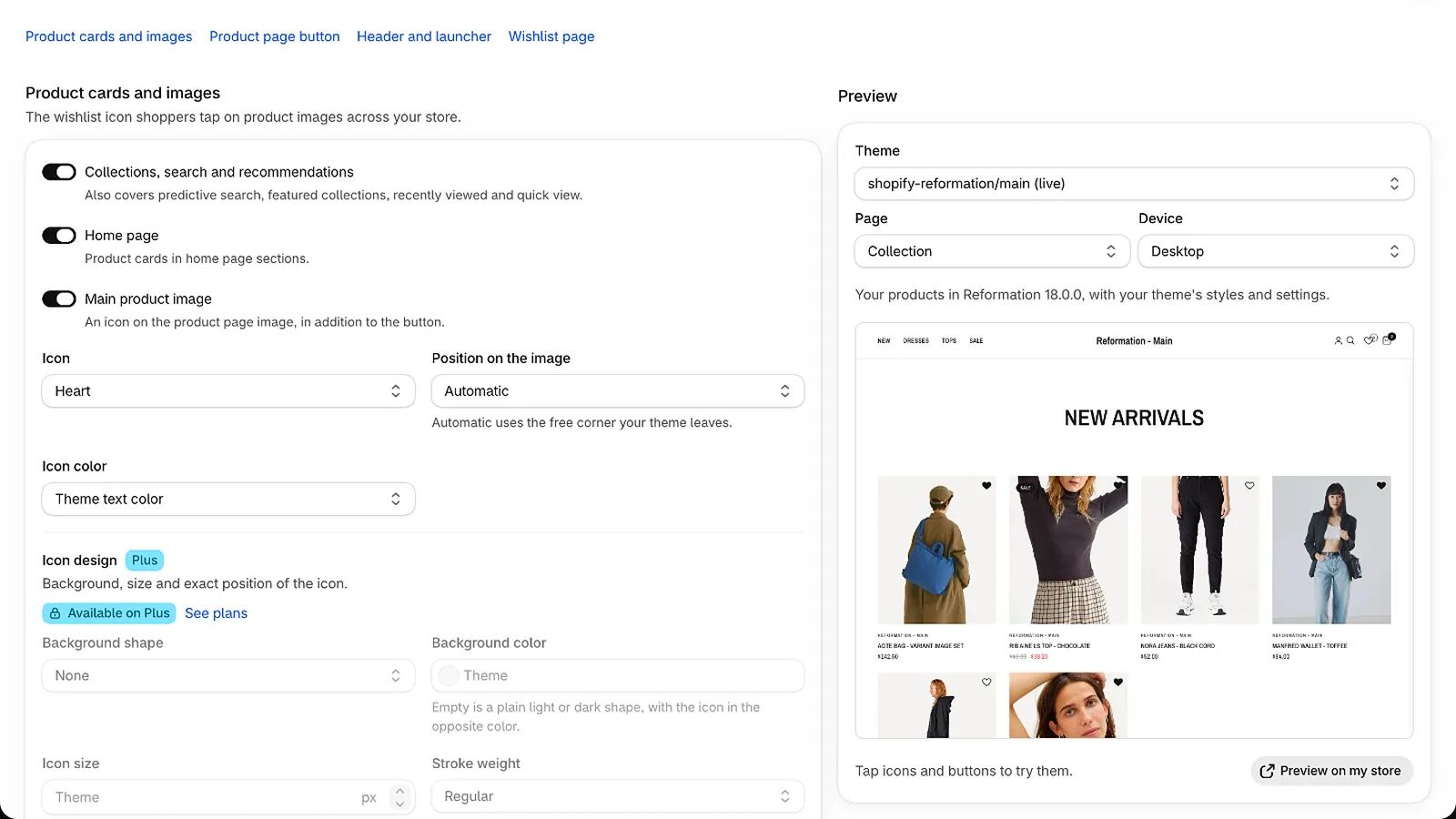
Shoppers save from collection pages, search results, product recommendations, recently viewed products and quick view, with one tap. The header icon’s count updates as they go. You choose the icon (Heart, Star or Bookmark), where it sits on the image and its color. You can also show icons on homepage product cards and on the main product image, each with its own switch.
A product page button that saves the exact variant
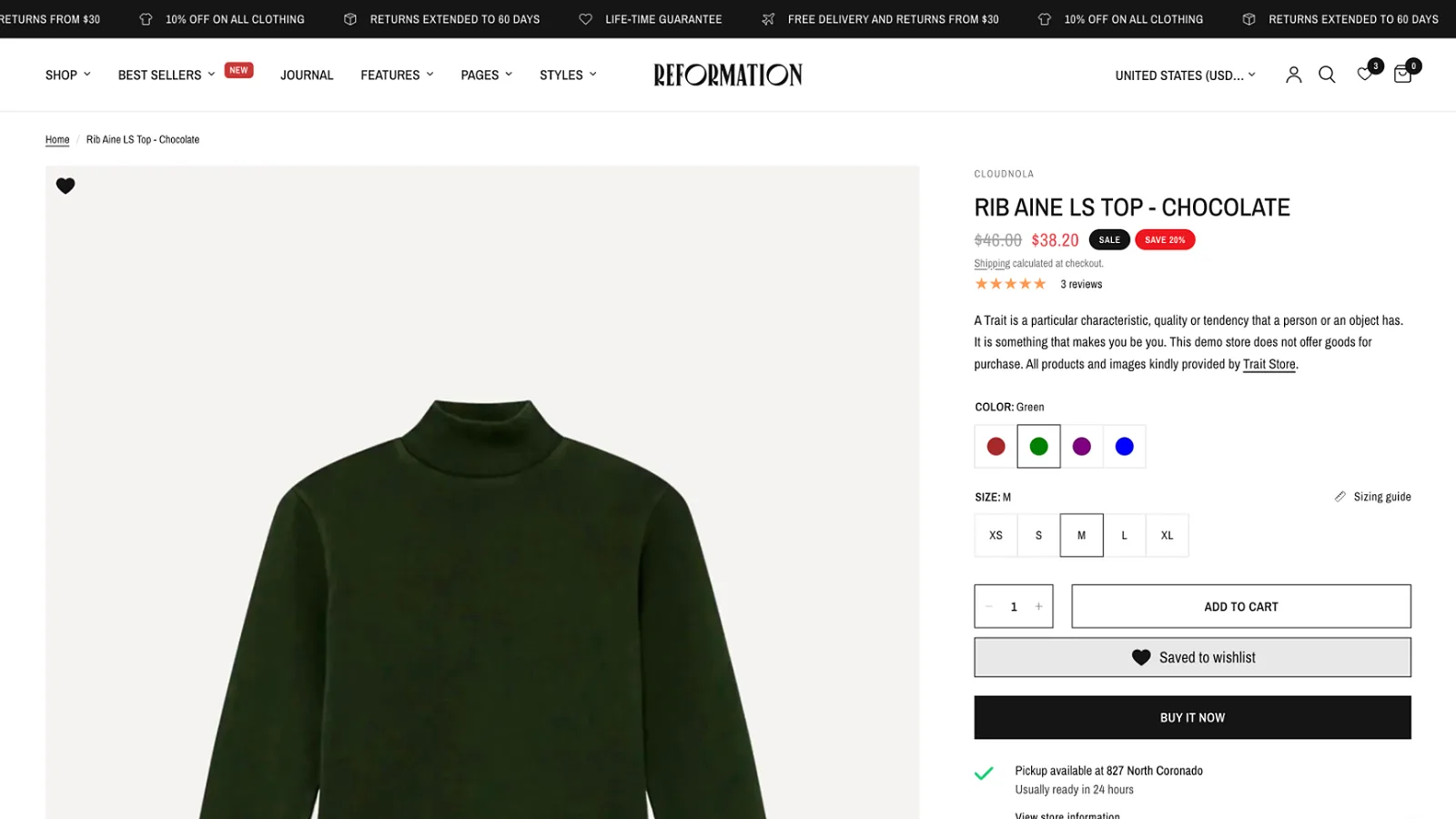
The “Add to wishlist” button sits with your buy buttons and reads “Saved to wishlist” after a save. It saves the variant the shopper selected, so a shopper who picked Green in size M gets Green in size M on their wishlist. Card icons save the product, and the shopper picks options later on the wishlist page.
A wishlist page inside your theme
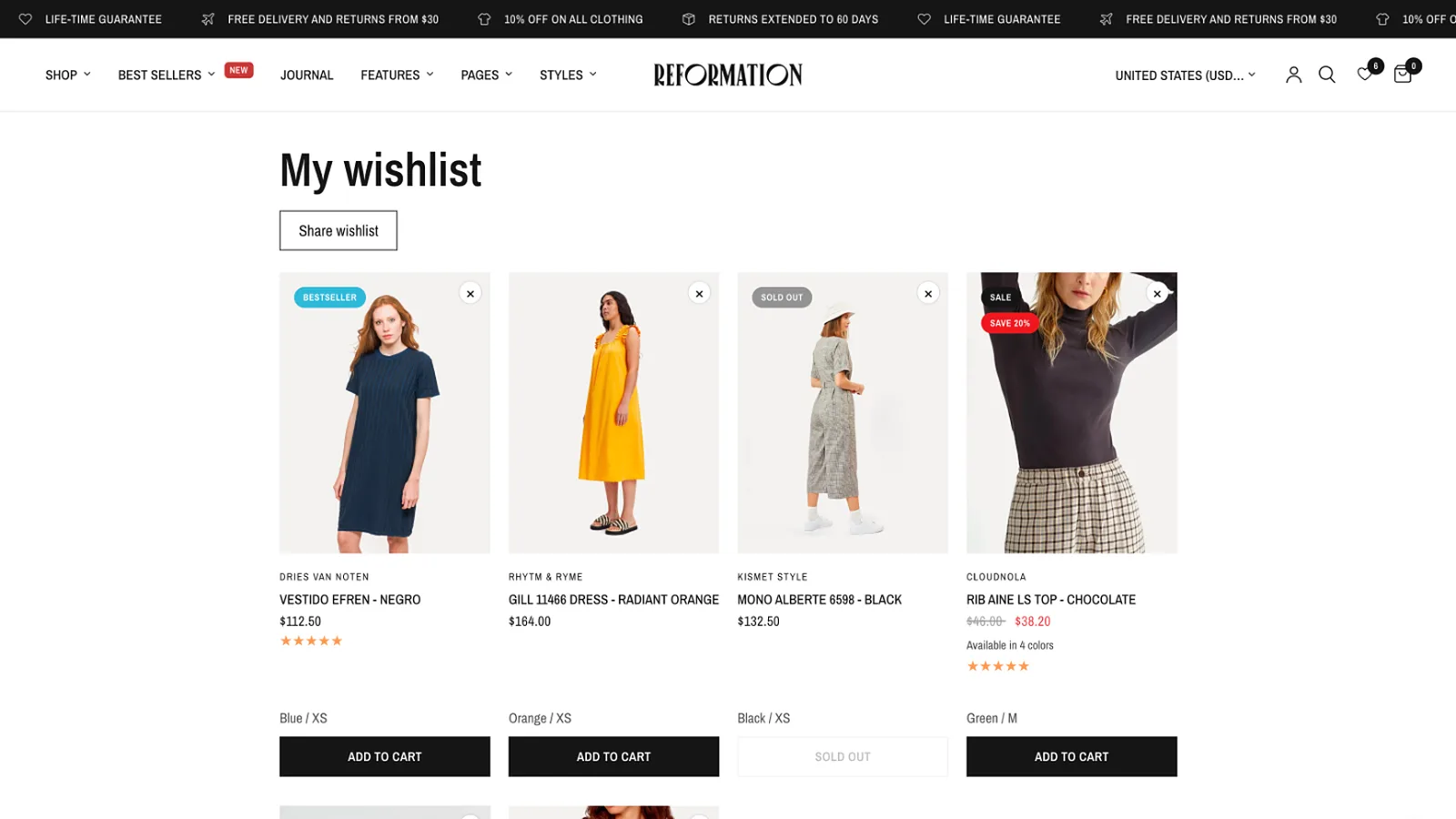
The wishlist page opens inside your store’s own header and footer, at /apps/wishlist by default. From it, shoppers can:
- add items to the cart through your theme’s own cart;
- remove items, with Undo;
- see sold-out items marked as sold out, or hidden if you prefer;
- copy a share link to the list.
Shared lists are read-only: visitors can add items to their cart but not change the list. Shared pages are hidden from search engines.
Guest wishlists that follow the shopper
Shoppers don’t need an account to save. A guest’s list is kept in their browser, and when they sign in, it joins their account list. Signed-in customers get the same list on every device. If you’d rather keep wishlists for customers only, the Who can save items rule switches to “Signed-in customers only”.
A wishlist in customer accounts
On stores using Shopify’s customer accounts (not legacy accounts), you can add a full Wishlist page and a “My wishlist” summary to the customer’s account. You add both in the checkout and accounts editor, and they’re included on every plan.
15 storefront languages
The storefront wording comes in English, Arabic, Chinese (Simplified), Dutch, French, German, Hindi, Italian, Japanese, Korean, Polish, Portuguese (Brazil), Portuguese (Portugal), Spanish and Turkish. You can edit the labels on the app’s Text page. Arabic displays right to left.
On Fuel themes, the wishlist places itself
This is the part we’re proudest of. A wishlist app that doesn’t know your theme has to work out where it puts its product cards and header, or ask you to add app blocks. On our themes, there’s nothing to work out.
When you install Wishlist by Fuel on a store running a Fuel theme, the app’s Home page reads “Automatic, made for [your theme]”. You turn on the app embed, and the app places:
| What appears | Where | What you do |
|---|---|---|
| Wishlist icons | On product cards across collections, search and recommendations | Nothing |
| “Add to wishlist” button | With the buy buttons on product pages | Nothing |
| Header icon with a count | In your theme’s header | Nothing |
| Wishlist page | At /apps/wishlist, inside your theme | Nothing |
It works this way on Ascension, Reformation, Distinctive, North, Pinnacle, Vision and Habitat. Each placement is made for that theme and checked on its current versions, so keep your theme up to date for the best fit. Our guide to updating a Shopify theme without losing customizations shows how.
To be precise about what “made for” means: the wishlist isn’t part of the theme’s code. Shopify’s rules wouldn’t allow that, and the app places everything from outside the theme. You can turn it off with the same switch, and your theme is exactly as it was.
On any other Shopify theme
Wishlist by Fuel also works on other Online Store 2.0 themes that support app embeds. With the app embed on, it:
- finds your theme’s product cards and adds wishlist icons to them;
- adds the product page button below the buy buttons;
- adds a header icon next to the cart on Shopify’s Dawn and Horizon themes, and on other themes shows a round floating button in a corner of the screen instead.
From there, you can fine-tune:
- Product page button: add the “Wishlist button” app block where you want it in the theme editor, or set its location on the app’s Appearance page.
- Header icon: add the “Wishlist icon” app block to your header, or choose a floating launcher or a menu link instead.
- Missing icons: if a theme builds its product cards unusually and icons don’t appear, the Advanced page lets you set the selectors yourself. Our support team can help.
How to add Wishlist by Fuel to your store
Setup takes a few minutes. The app’s Home page walks you through it with a setup guide; these are the steps it shows:
- Install Wishlist by Fuel from the Shopify App Store. The app opens on Home.
- Turn on the app embed. Select Turn on in [your theme]. The theme editor opens on App embeds. Check that Wishlist is switched on, then select Save. Home then shows “Wishlist by Fuel is live on [your theme]”.
- Check the product page button and header icon. On a Fuel theme, both steps show Automatic and there’s nothing to do. On other themes, add the app blocks or choose the floating launcher, as above.
- Preview your settings. Open Appearance to choose icons, colors and placement. Select Preview on my store to see unsaved changes on your live storefront, visible only to you, before shoppers see them.
- Add the wishlist to customer accounts (optional), from the checkout and accounts editor.
Want back-in-stock and price-drop emails? Step 6 in the guide, Set up alerts, unlocks on Plus. The full walkthrough is in our getting started guide.
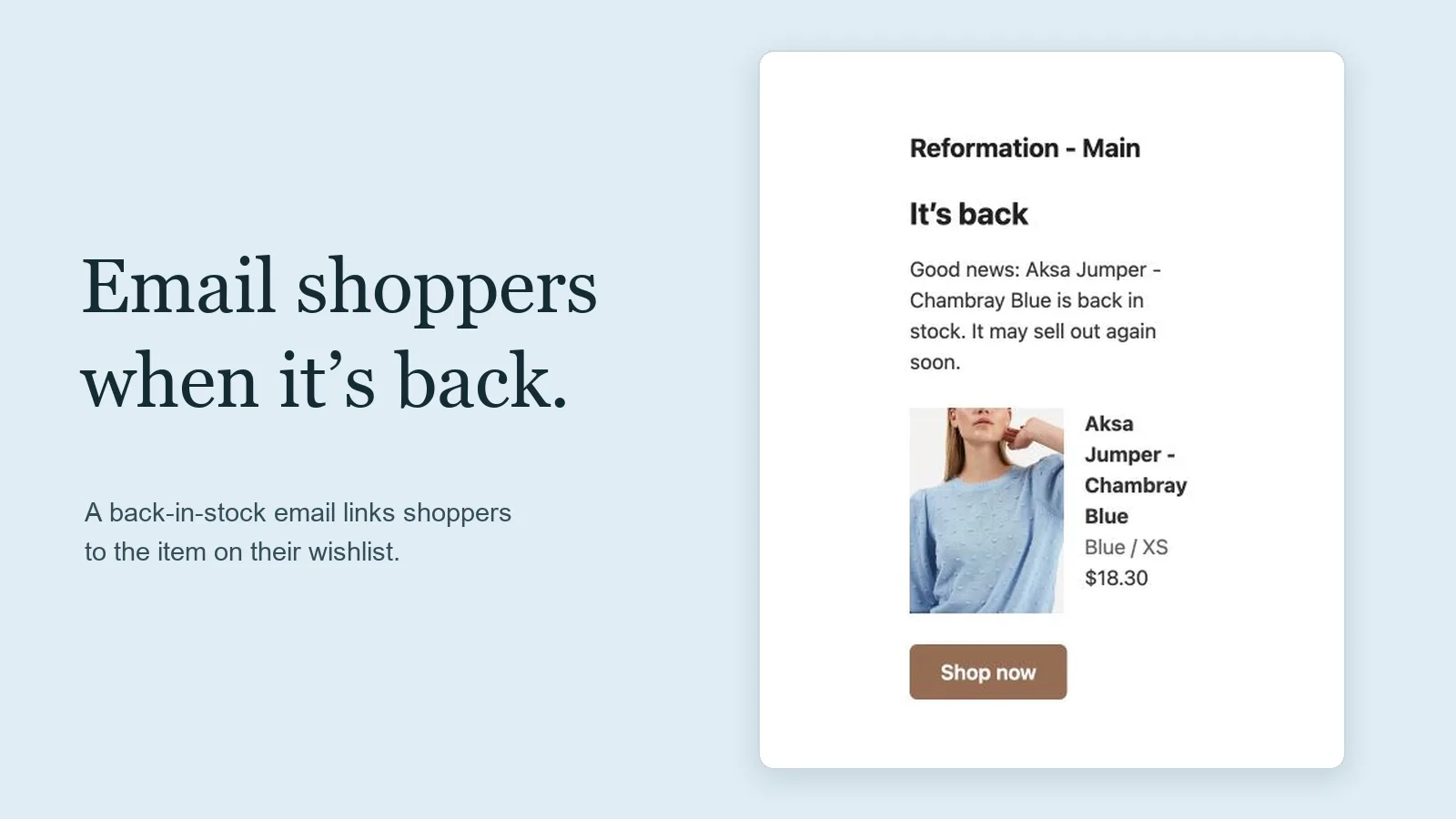
Back-in-stock and price-drop emails
A wishlist tells you exactly what each shopper wants. Alert emails turn that into a reason to come back. Shoppers sign up once, with their email, and get alerts for every item on their wishlist.
| Alert | Plan | Sent when |
|---|---|---|
| Back in stock | Plus | A sold-out saved item has stock again, once per restock |
| Price drop | Plus | The price falls by at least your minimum drop (default 10%), once per drop |
| Low stock | Pro | Stock falls to your threshold or below (default 5), once |
| Reminder | Pro | An item was saved but not bought, after the days you set (default 14), to signed-in customers only |
A few details we designed carefully:
- Sign-up is simple. A banner on the wishlist page, and an optional pop-up after a shopper’s first save, ask for an email.
- Consent is never assumed. A marketing checkbox sits under the email field, unchecked by default. Shoppers get their alerts either way, and only those who check it are added to your Shopify customers as email subscribers.
- No one gets flooded. A frequency cap (by default one alert email per shopper every 7 days) keeps alerts welcome, and every email has a one-click unsubscribe link.
- On-brand emails. Plus lets you add your logo, brand and button colors and footer text, and edit the subject, heading and message. Pro adds a section designer to choose each email’s sections and their order.
- Single-use discount codes. On Pro, reminder and price-drop emails can carry a single-use discount code, created in your store’s Discounts. Codes go only to shoppers who opted in to news and offers.
Plus includes 500 alert emails every 30 days, and Pro 5,000. There are no usage charges: if you reach the allowance, alerts pause until it resets, and wishlists keep working. The alerts guide covers every setting.
What a wishlist tells you as a merchant
Saved items are demand you can see before it becomes a sale. On every plan, Wishlist by Fuel shows you:
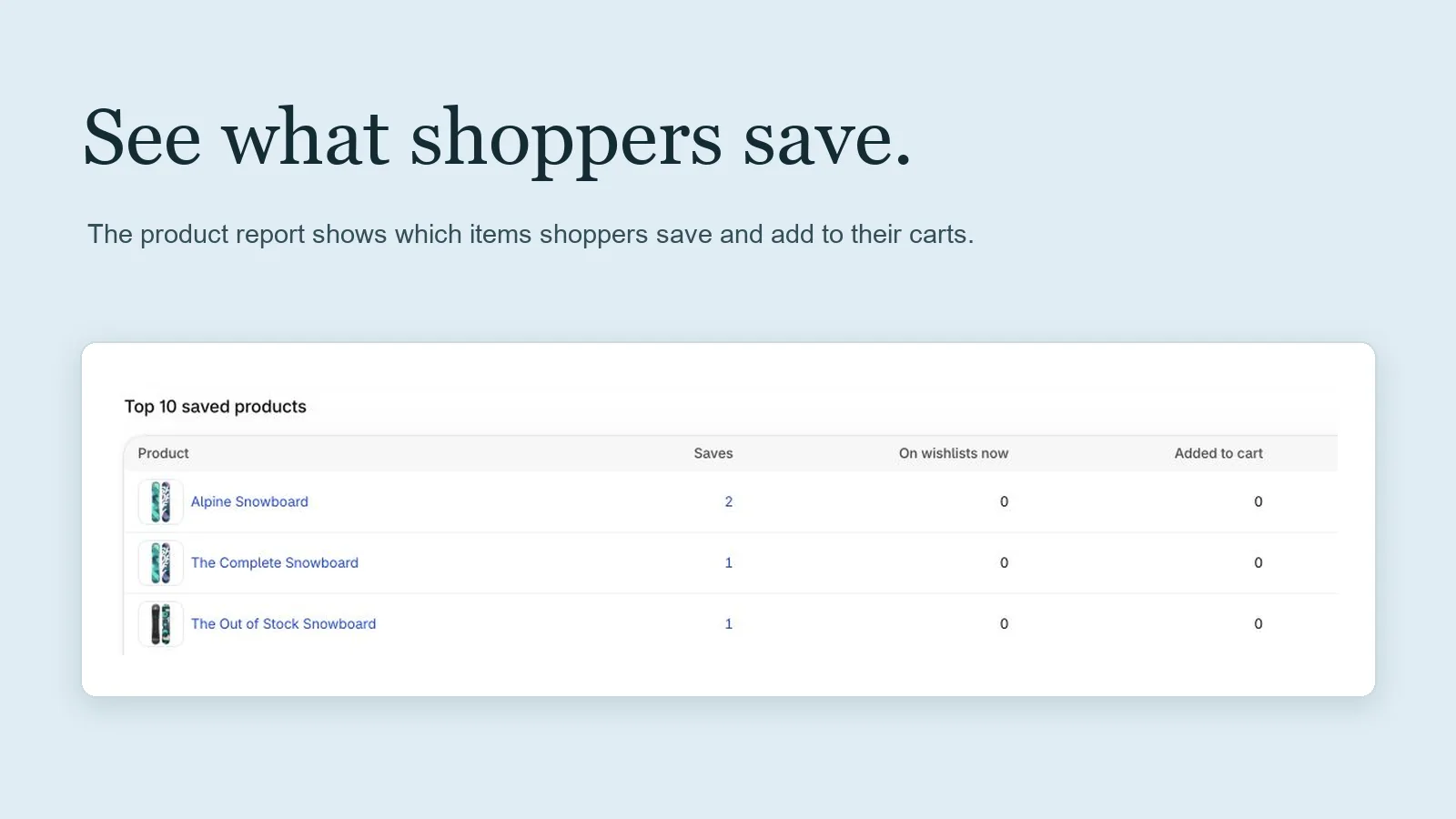
- Analytics for the last 30 days: saves, wishlists with items, the total and average value of wishlists, items added to cart from wishlists, saves per day and your top 10 saved products.
- A Wishlist block on product pages in your Shopify admin: how many wishlists hold the product now, saves in the last 30 days and adds to cart from a wishlist.
- A Wishlist block on customer pages: what that customer has saved, and when.
- A Shoppers page listing customer wishlists, with their value, items on sale and last activity, and the ability to revoke a share link.
Plus adds date ranges back to 13 months, comparisons with the previous period and CSV exports. Pro adds order attribution for signed-in customers, counted as item revenue: orders where a wishlist item was added to the cart from the wishlist in the 7 days before (Direct), or saved in the 30 days before (Influenced). It also adds revenue by alert email.
Use the top saved products list the way you’d use search data: it shows what to restock first, what to feature on the homepage, and which products might sell with a small price change.
Plans and pricing
Billing goes through Shopify, so charges appear on your Shopify bill. All prices are in USD.
| Free | Plus | Pro | |
|---|---|---|---|
| Price | $0 | $9.99/month or $99/year | $24.99/month or $249/year |
| Free trial | — | 14 days | — |
| Card icons, product button, header icon, wishlist page | Yes | Yes | Yes |
| Guest wishlists and share links | Yes | Yes | Yes |
| Customer accounts wishlist page | Yes | Yes | Yes |
| Analytics | Last 30 days | Up to 13 months, exports | Plus order attribution |
| Alert emails | — | Back in stock, price drop (500 every 30 days) | Adds low stock, reminders (5,000 every 30 days) |
| Discount codes in emails | — | — | Yes |
| Design settings and rules | Basic | Icons, button, page, rules by price, stock and tags | Adds custom JavaScript |
| Connects to | — | Google Analytics 4, Meta Conversions API | Adds Shopify Flow, Klaviyo |
The Free plan isn’t a trial. It has no limit on saves, shoppers or traffic, and the storefront is never paused because of your plan. Each wishlist holds up to 500 items. If you move down a plan, your paid settings stay saved and simply stop applying, so moving back up restores them.
Built light, and built to leave cleanly
We make themes, so we care about what an app adds to a storefront. On pages other than the wishlist page, Wishlist by Fuel loads about 10 KB of script (gzipped), deferred so it doesn’t hold up the page. Its styles add about 2 KB, and some Plus features add a little more. It doesn’t write anything to your orders.
That matters because apps, not themes, are usually what slows a Shopify store down. Every feature your theme already covers is one less app script on your pages. Our guide to fast Shopify product pages explains the less-apps approach.
Common mistakes when adding a wishlist to Shopify
- Choosing a code-only wishlist. It can’t sync across devices, merge guest lists or send alerts, and a theme update can break it.
- Forcing shoppers to sign in first. A wishlist that demands an account before the first save asks for a commitment before the shopper has decided anything. Let guests save, and merge their lists at sign-in.
- Saving the product but not the variant. “I saved this sweater” isn’t enough when it comes in five sizes. A product page button should keep the size and color.
- Installing the app and never looking at the data. Your most-saved products are a buying list. Check them every week.
- Emailing without consent. Alert emails should go only to shoppers who asked for them, with the marketing opt-in unchecked by default.
- Hiding the wishlist page. If shoppers can’t find their list, they don’t come back to it. Keep a header icon with a count visible.
Frequently asked questions
Does Shopify have a built-in wishlist?
Not in its themes. Shopify’s Theme Store requirements list wishlists among the app-like features that themes must not include, so stores add a wishlist with an app. Wishlist by Fuel is one, made by the team behind seven Theme Store themes.
Is Wishlist by Fuel free?
Yes, there’s a Free plan with no limit on saves, shoppers or traffic. It includes card icons, the product page button, a header icon, the wishlist page, guest wishlists, share links and 30 days of analytics. Plus costs $9.99 a month and adds back-in-stock and price-drop emails, with a 14-day trial. Pro costs $24.99 a month.
Do shoppers need an account to use the wishlist?
No. Guests can save items without an account, and their list is kept in their browser. When they sign in, the guest list joins their account list, which then follows them across devices. You can also restrict saving to signed-in customers in the app’s rules.
Does Wishlist by Fuel work with my theme?
It works on Online Store 2.0 themes that support app embeds. On Fuel themes (Ascension, Reformation, Distinctive, North, Pinnacle, Vision and Habitat), the card icons, product page button and header icon are placed automatically once you turn on the app embed. On other themes, the app finds product cards itself, and you can fine-tune placement with app blocks or selectors.
Can I send back-in-stock emails from a Shopify wishlist?
Yes, on the Plus and Pro plans. Shoppers sign up with their email from the wishlist page or a pop-up, and receive an email when a saved item is back in stock or drops in price. Pro adds low-stock and reminder emails and single-use discount codes.
Will a wishlist app slow down my store?
Wishlist by Fuel loads about 10 KB of script (gzipped) on most pages, deferred so it doesn’t block the page from loading. Any app adds some weight, so check your store’s speed after installing apps and remove ones you don’t use.
Does the wishlist work with Shopify’s customer accounts?
Yes. You can add a full Wishlist page and a “My wishlist” summary to Shopify’s customer accounts from the checkout and accounts editor, on every plan. They aren’t available on legacy customer accounts.
What languages does Wishlist by Fuel support?
The storefront comes in 15 languages: English, Arabic, Chinese (Simplified), Dutch, French, German, Hindi, Italian, Japanese, Korean, Polish, Portuguese (Brazil), Portuguese (Portugal), Spanish and Turkish. You can edit the labels on the app’s Text page.
Get started
- Install Wishlist by Fuel from the Shopify App Store, on the Free plan.
- Turn on the “Wishlist” app embed from the app’s Home page.
- Open Appearance, choose your icon, and select Preview on my store.
- When you’re ready for alert emails, start the 14-day Plus trial.
Questions? Read the Wishlist by Fuel help center or contact our team. If you run one of our themes, you’re talking to the people who built both.